Film stock emulation · OFX · DaVinci Resolve

Design your
own stocks.
Be the chemist.

Photo Chemist is a full photochemical pipeline that develops your digital footage the way a darkroom would, from photons to final print. Not a filter. A film lab in a node.

17+stage pipeline
43band spectrum
stocks you design
Stock preview Live look sim
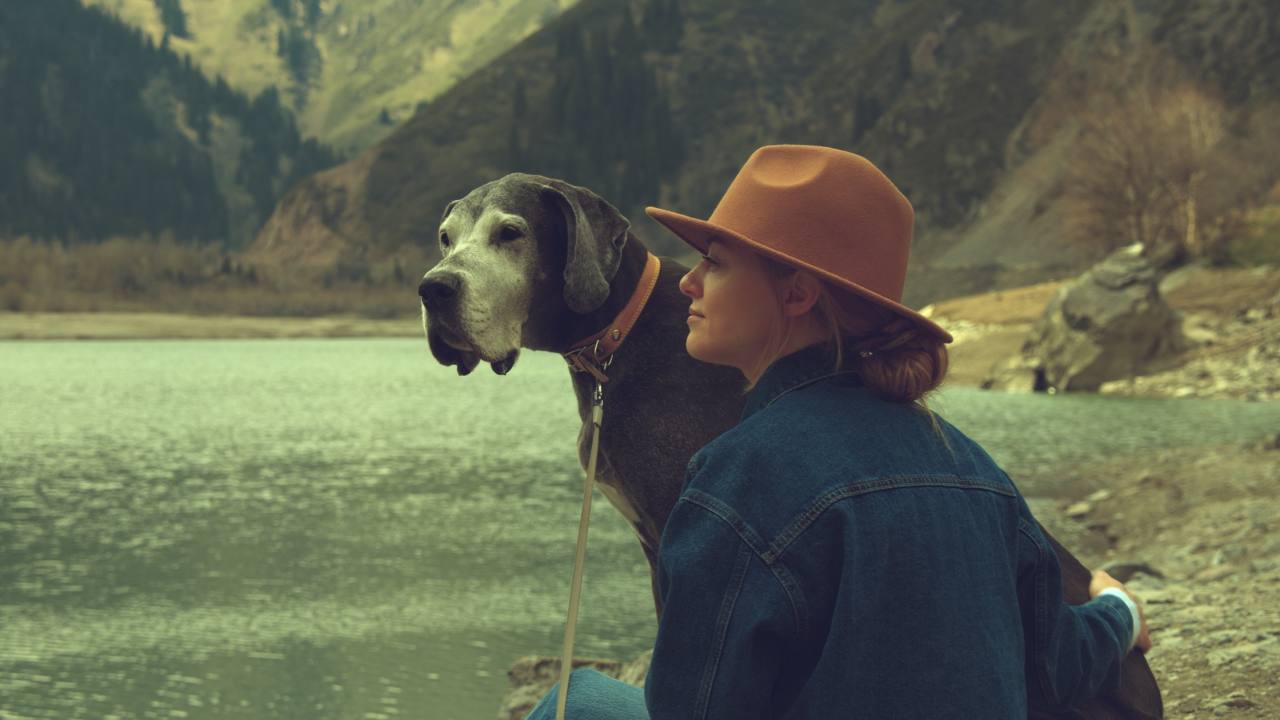
Photo Chemist film stock preview
Golden Daylight

Sample stocks I designed as starting points... your footage and your own stock design will land differently. Previews use a live color sim for now.

What is film, really?

It's chemistry, not an old-school filter.

Film isn't just “digital with grain.” It's a chemical system. Light strikes silver halide crystals in the emulsion, tiny dye molecules react, and an invisible latent image is revealed during development. That whole chain of physics and chemistry is why film looks richer, softer and more natural than a sensor.

Photo Chemist simulates that entire process in software, step by step, photons to print, so your footage looks like it was made in a darkroom, not dropped through a LUT. The best part? You are the chemist. You design the stock.

Light hits the emulsion

Photons strike silver halide crystals across the full visible spectrum, not just three channels.

Ag
A latent image forms

Exposed crystals hold an invisible record of the scene, waiting in the silver.

CMY
Development reveals dye

Chemistry converts silver into cyan, magenta and yellow dye clouds... the image you see.

Light passes through to screen

Projector light transmits through the composite dyes. What survives is your final frame.

The pipeline · photons → print

Meet the Photo Chemist. (It's you.)

Your footage runs through a 17+ stage system, from defining the stock and how it sees light, all the way to developing and projecting it. Here's the whole journey, stage by stage. It looks like a lot, but play with it and it clicks fast.

Stage 01 · 02

Reconstruct the light

Reality: film reacts to the full 360–780nm spectrum, not just “RGB.”

We reverse-engineer your digital RGB into a 43-band spectrum using the dye-sensitivity controls. That estimates where silver halide is likely to become metallic silver, and which emulsion dyes form where, giving physically plausible light distributions to work from.

Why it matters

Different film stocks “see” different parts of the spectrum. Get this right and everything downstream behaves like real film.

Stage 03 · 05

Exposure, grain & halation

Shape the HD density curves; texture emerges from the silver itself.

Once we map where silver activates, we shape the density response with the HD curves, taking a linear scene exposure and letting shadows hang on longer while highlights roll off gracefully. Grain appears where silver that should have activated doesn't, leaving a slightly different density than its neighbours. Halation models light that scattered back through the stock, leaving that signature reddish halo bleeding around highlights.

Why it matters

This is why film has graceful highlight rolloff and rich shadows instead of hard digital clipping, and why the grain feels built-in, not sprinkled on top.

Stage 06

Dye design

Cyan / magenta / yellow as asymmetric Gaussian absorption curves.

The three dyes are simulated as asymmetric Gaussian absorption curves, matchable to real film chemistry, and the latest update resolves those absorption curves across the same 43-band spectrum as the sensitivities, for true spectral accuracy. Density is which wavelengths a dye absorbs; transmission is what it lets pass. What you see at the end is the transmission... the light that remains.

Why it matters

Real film is all about these dyes and how they block light. Shape them and you're shaping the soul of the stock.

Stage 07

Development

Process the metallic silver, then form the dye emulsions.

Controls here develop the latent image. Push / Pull is the headline move... it's how long the stock sits in the developer, letting more or less dye form where metallic silver is present. Tweak it to lift or crush the whole response.

Why it matters

Push/pull is the single most intuitive way to change a stock's character, just like a real lab dialing development time.

Stage 07.1

Bleach bypass & inter-image effects

Silver retention and the subtle chemistry that makes stocks special.

Bleach Bypass controls how much metallic silver is washed away or retained during development. Beyond it sit the finer moves: Midtone Expansion, Developer Competition, Chroma Expansion, Dye Inhibition and Spectral Separation, each accounting for a real aspect of stock design to pull out the richest tones and colors. Bias controls apply all of this per layer.

Why it matters

This is where a stock goes from “fine” to “unmistakably yours”: high-silver contrast, expanded midtones, or a clean delicate palette.

Stage 08

Printer lights

Beer–Lambert transmission. Design the light that exposes the print.

Now your negative is developed, Stage 08 is the printer lights. We model transmission through the negative with the Beer–Lambert law and let you design the color and power of the light used to expose the next stock. This is the hand-off from negative to print.

Why it matters

Printer lights are where the classic “print” character is dialed in, the single biggest lever on how the final image is balanced.

Stage 09 – 17

The print pass & projector

Stages 1–8, run a second time... this time to build the print film.

Here's the part that makes it a true photochemical chain: stages 09 through 17 repeat the whole 1–8 process, now geared toward creating a print film from the printer light leaving the negative. That print stock is then sampled through a projector simulation, so what lands on screen isn't your input colors or even the dye colors, but the light that survives the composite dyes of negative and print.

Why it matters

Picture the projector in your local theater: the light you actually see is the light the dyes didn't absorb, and that's exactly what we deliver. Two full emulsions stacked, negative then print, handling the light just like real film does.

New · Stock Lab

Sculpt a stock by hand with the Film Stock Editor.

We built something we haven't seen anywhere else: a Film Stock Editor. Instead of guessing at numeric sliders, you draw the curves that define your film (dye sensitivity, the HD response, and dye absorption) right on a 43-band spectral graph, and watch the stock develop live. It's the most direct, most innovative way to design a look from scratch.

  • Draw the curves by hand. Click empty curve to add a point, drag to move, right-click to delete. Sculpt each layer directly across the spectrum.
  • Per-dye peak & amplitude. Set R / G / B peak wavelengths in nanometers and tune Yellow, Magenta & Cyan amplitudes independently.
  • Log view & live preview. Flip to log density, switch between stocks, and see the frame re-develop in real time as you work.
Film Stock Editor
Film Stock Editor
Log View
Stock:
Click tabs to highlight a channelSwitch mode for sensitivity vs dye
Stock Design · 01

Dye sensitivity

K, peak & sigma per layer... where each emulsion layer reacts on the spectrum, and how wide that response runs.

Stock Design · 02

HD curves

Compress and roll off shadows and highlights, and set the steepness of the straight-line section between them.

Stock Design · 03

Dye colors

Per dye: peak, height, an asymmetric width and a minimum baseline. Exactly which wavelengths each dye blocks.

The membership

Get Photo Chemist... and everything else.

Photo Chemist comes with the whole Tool Box. Become a Happy Little Noder and unlock every premium tool on the channel, plus every update and new release. One low annual fee that will never be raised. Lock it in once and you're set.

Plenty is free, forever

A whole set of the Tool Box is free, always. Grab the Tool Box Manager and start playing today. Photo Chemist and the rest of the premium kit unlock with a single membership whenever you're ready.

Happy Little Noders
$47.34/ year

Everything you see on YouTube, plus every update, for less than a single film stock LUT pack.

  • Full Photo Chemist DRT (every stage & the Film Stock Editor)
  • Every premium DCTL & OFX plugin in the Tool Box
  • All future tools & updates included
  • Technicolor DRT, Hue Contrast Compressor, Color Slice O'matic & more
  • Price locked, never raised
Become a member →
Billed annually · cancel anytime

Getting started

Install in a couple of clicks.

The only way in is the Tool Box Manager. It installs Photo Chemist, keeps it organized, and updates it for you right alongside the rest of the kit. Works on macOS and Windows, no manual file-copying required.

Download the Tool Box Manager

Grab the latest release from GitHub and open it. It's your home base for every Dec. 18 tool.

Find Photo Chemist in the list

Browse the catalog inside the Manager and select Photo Chemist. It's right there alongside the rest of the kit.

Click Install

The Manager drops the OFX bundle into the right place for you. No digging through system folders.

Restart DaVinci Resolve

Relaunch Resolve so it picks up the new plugin, and make sure OFX is enabled in Resolve's plugin manager. On macOS you may first need to allow it in System Settings → Privacy & Security.

Apply from the Effects library

Photo Chemist now lives in your OFX effects. Drop it on a node. It expects a DaVinci Wide Gamut / Linear input, so add a CST with no tone mapping just before it.